
Many everyday problems online start with one stolen password. A few steps make your accounts much harder to take over. You do not need to become a technical expert. The same four habits — strong unique passwords, a password manager, two-step verification, and caution with unexpected messages — close off the most common routes into an account.
Use a different password for every important account
When one website is breached, attackers often try the same email and password on other sites. Unique passwords stop that chain. The U.S. Cybersecurity and Infrastructure Security Agency (CISA) recommends that a strong password be long, random, and unique: at least 16 characters, not a birthday, pet name, or other detail someone could guess, and not reused anywhere else.
A long passphrase made of several unrelated words is easier to remember than a short string of symbols. CISA suggests four to seven unrelated words, which you can write with or without spaces. Save the clever substitutions and one-off rules for the password manager; what matters is length, randomness, and using a different password on each account.
Let a password manager do the remembering
A reputable password manager can create and store strong, unique passwords, so you only need to remember one strong master passphrase. Many browsers and phones include one. CISA advises using a password manager rather than saving passwords in an ordinary file on the computer. Choose a master passphrase you have not used anywhere else, and turn on two-step verification for the password manager itself if it offers that option.
If you already reuse a password on several sites, change the important ones first: email, banking, and any account that can reset the others. A password manager can flag reused or weak entries so you can work through the list over a few sessions rather than in one sitting.
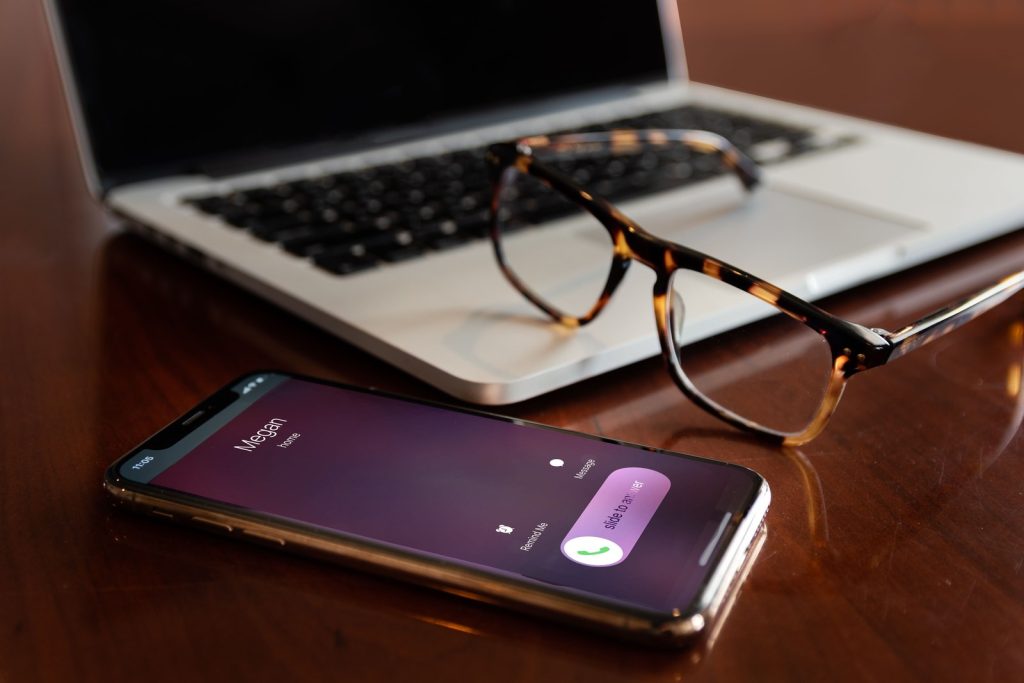
Turn on two-step verification
Two-step verification (also called two-factor or multi-factor authentication, or MFA) asks for something extra, such as a code from an app or a security key, when you sign in. Even if someone has your password, they still need that second step. CISA recommends turning MFA on for every account that offers it, especially email, banking, and social media. Start with your email account, because it is used to reset everything else.
In most accounts you will find the setting under security, password, or privacy. It may be labeled two-factor authentication, two-step verification, or similar. You may be offered a code by text or email, an authenticator app that generates a new code every few seconds, a biometric check, or a physical security key. An authenticator app or a security key is generally harder for someone else to intercept than a text message, but any second step is better than a password alone.
When you turn MFA on, the service will often give you backup or recovery codes. Store those somewhere safe and separate from your phone — for example in the password manager, or on paper in a place you would keep other important documents. If you lose the phone that receives codes, those backups are how you get back in.
Pause before you click
Phishing is a message designed to trick you into clicking a harmful link, opening an attachment, or handing over a password, a one-time code, or financial details. It may arrive as email, a text, a social media message, or a phone call, and it may look as if it comes from a company or a person you know. CISA’s guidance on recognizing and reporting phishing describes common signs and what to do next.
- Be wary of messages that create urgency: a locked account, a missed parcel, an unpaid bill, or a threat of legal action if you do not respond at once.
- Instead of clicking the link, open the app or type the website address yourself. If you need to call the company, use a number from a statement or the official website, not the number in the message.
- Never share a sign-in code, password, or one-time passcode with anyone who contacts you, even if they say they are from the company or from a relative who needs help.
- Look at the sender address and the link carefully. Small changes in a company name or web address are a warning sign. Do not rely on spelling and grammar alone; some messages are well written.
- If a message looks suspicious, do not click, reply, or use an “unsubscribe” link in it. Report it if your email or messaging app offers a report button, then delete it.
If you think a message might be genuine, still do not use the link or phone number it contains. Contact the company or the person another way you already trust.
Keep things updated
Install updates for your phone, computer, browser and apps. Updates often fix security problems. CISA’s advice on software updates is to install them as soon as you reasonably can, and to turn on automatic updates in the device or application settings so that patches are not left waiting on a “remind me later” prompt. Pay particular attention to the operating system, the browser, and any security software you use.
If an account is taken over
If you cannot sign in, or you see activity you did not perform, use a different device if you can, and go to the official website by typing the address yourself. Change the password, sign out other sessions if the site allows it, and review the recovery email and phone number to make sure they are still yours. Check other accounts that used the same password, starting with email and banking.
The Federal Trade Commission’s IdentityTheft.gov site can walk you through reporting and recovering from identity theft. You can also report fraud to the FTC at ReportFraud.ftc.gov. If money is missing, contact the bank or card issuer on a number from the back of the card or a statement.
A few extra habits
- On a shared or public computer, do not let the browser save your passwords, and sign out when you finish.
- Be careful with public Wi-Fi for banking or other important accounts. Your phone’s mobile data is often a safer choice when you are away from a network you trust.
- Review the list of devices and apps that have access to your email or social accounts from time to time, and remove ones you no longer use.
iDefenses provides general information only. It is not a law firm and does not give legal advice. Reading this site does not create a lawyer–client relationship.
Conversation
0 comments